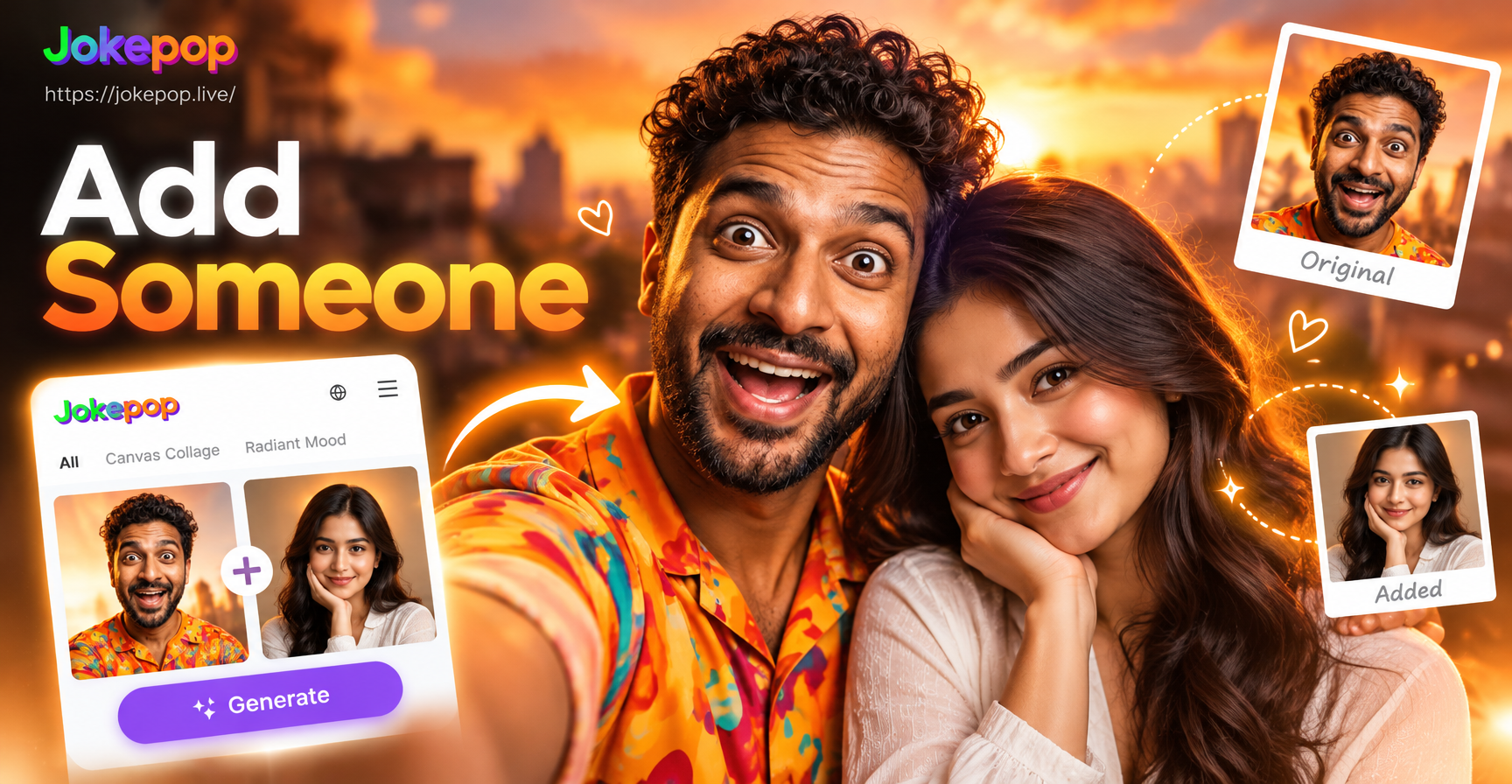
Adding someone to an existing photo used to require Photoshop, layer masks, and hours of careful editing. Today, AI photo editing apps like jokepop can combine two separate pictures into one natural-looking image in minutes. Whether you missed a family reunion, need a professional team photo, or simply want to see what a group shot would look like with an extra friend, this guide shows you exactly how to add someone in a picture using jokepop.
jokepop is a mobile app built for AI image generation and photo manipulation. Its image-to-image feature lets you upload a base photo, provide a second photo of the person you want to add, and generate a merged result where both subjects appear together. No complex prompt engineering or manual cut-and-paste is required. The AI preserves facial features, lighting, and perspective better than traditional editing for casual users.
Why Use AI to Add Someone in a Picture?
Traditional photo editing requires precise selection tools, layer alignment, color correction, and shadow matching. Even with experience, the result often looks fake because the inserted person's lighting, scale, or perspective differs from the base photo. AI solves this by understanding the scene's context, estimating depth and light direction, and generating a new image where the added person blends naturally.
With jokepop, you don't need design skills. The app's trained models analyze both images and reconstruct a cohesive composition. You can choose from over one million style filters to match the original photo's tone, from realistic photography to artistic renderings. This makes the process fast, accessible, and surprisingly convincing for social media, keepsakes, or quick edits.
What You Need Before You Start
To add someone to a photo, you need two images: the base photo (the picture where the person will be added) and a clear photo of the person you want to insert. Make sure both photos meet these basic requirements:
- Good lighting: Both images should have similar lighting direction and color temperature. A bright outdoor base with a dim indoor person will create mismatched shadows.
- Face visibility: The person's face must be clearly visible in their photo. Profile shots or obscured faces reduce AI accuracy.
- Reasonable resolution: Upload photos at least 500x500 pixels for better detail retention.
- Similar angle: If possible, the person's photo should be taken from a similar angle as the people in the base photo. For example, if the base uses eye-level shots, avoid a top-down selfie for the added person.
You also need the jokepop app installed on your Android device. It is available on Google Play and designed for mobile use only. No web version exists, so download the app and complete all steps there.
Step-by-Step Method 1: Using Image-to-Image (Base Photo + Person Photo)
This method gives you the most control and works best when you have a specific base picture you want to keep mostly unchanged. The AI uses the base as a reference and adds the second person according to your prompt.
Step 1: Download and Open jokepop
Go to Google Play, search for jokepop, and install the app. Open it and allow any necessary permissions for photo access. The interface is simple: choose the image-to-image feature from the home screen.
Step 2: Upload Your Base Picture
Tap the upload button and select the photo where you want to add someone. This could be a group photo missing one member, a solo portrait, or any scene. The app will display a preview. You can crop or rotate if needed.
Step 3: Add the Person's Photo as a Reference
In image-to-image mode, jokepop sometimes allows you to add a second reference image. If the interface shows only one upload slot, you can still achieve the effect by using a prompt that describes the person's appearance and position. However, the most reliable way is to look for the multi-reference or group photo option. The app's multi-person photo processing feature is designed to handle separate face inputs and merge them without blending or subject loss.
Step 4: Write a Detailed Prompt
The prompt tells the AI exactly what to do. Instead of a vague phrase like "add person," describe the desired outcome. For example:
- "Add the woman from the second photo standing on the left side of the man, both smiling, same lighting, realistic photo, high detail"
- "Combine these two photos so both people appear together in a living room, natural poses, accurate faces, no extra limbs"
- "Insert the missing friend into the group photo, third from the right, matching the existing clothes and background"
Be specific about position, pose, and any interactions (e.g., arm around shoulder, standing next to). The more detail you provide, the better the AI places the person correctly.
Step 5: Choose a Style Filter and Generate
jokepop offers over one million style templates, from realistic photography to anime, oil painting, and more. For a photorealistic result, choose a filter like "natural photo" or "cinematic realism." If you want an artistic twist, pick a matching style. Tap generate and wait a few seconds. The app processes both images and produces the merged photo.
Step 6: Refine and Save
Review the generated image. If the person's face looks off, run the generation again with a slightly modified prompt or try a different style filter. Once satisfied, save the photo to your gallery or share it directly to social media. You can also use the result as a new base and repeat the process to add more people.
Step-by-Step Method 2: Using Text-to-Image with a Reference
If you want more creative control or don't have a perfect base photo, use text-to-image plus a reference. This method generates an entirely new image that includes both the base scene and the added person, guided by your description.
Step 1: Select Text-to-Image in jokepop
Open the app and choose the text-to-image feature. You will see a prompt box and style options.
Step 2: Describe the Complete Scene
Write a prompt that describes the final image, including both the original subject and the person to add. For example: "A family of five standing in front of a beach house, including a tall man with glasses, a woman with brown hair, two kids, and a grandmother with silver hair, smiling, natural lighting."
Step 3: Upload the Base Photo as a Style or Character Reference
Some jokepop modes allow you to add a reference image to influence pose, background, or character appearance. Use the base photo to guide the background and existing people. If the app supports multiple references, upload the person's photo as a character reference so the AI knows exactly what they look like.
Step 4: Generate and Adjust
Generate the image. Because this method creates a new image from scratch, you may need several tries to get faces right. Use the same prompt with minor tweaks, or switch to a more realistic style filter. When the result looks natural, save it.
Tips for Realistic Results
- Match the lighting: If the base photo has warm sunset light, the person's photo should not be taken under cold fluorescent light. Adjust the prompt to mention matching lighting, or use a style filter that emphasizes consistent color grading.
- Keep face size consistent: If the person in the base photo is waist-up, the added person should also be waist-up, not a close-up portrait. The AI can adjust scale, but it helps to start with similar framing.
- Use simple backgrounds: Busy backgrounds make it harder for the AI to seamlessly insert a person. A clean background lets the model focus on the subjects.
- Add shadows manually in the prompt: If the result looks flat, include a phrase like "with natural shadows" or "consistent soft shadows" in the prompt.
- Try different style filters: Sometimes a filter that seems less realistic actually blends edges better. Test a few options before settling on one.
Common Problems and How to Fix Them
Problem: The added person's face looks distorted or mismatched. This usually happens when the input photo is low quality or taken from a very different angle. Use a front-facing, well-lit portrait of the person. If still distorted, try regenerating with a prompt that emphasizes "accurate facial features" and "preserve identity."
Problem: The person appears in the wrong location. Your prompt did not specify position clearly enough. Be exact: "on the left," "third from the right," "standing in the back." If the app shows a layout preview, use it to guide placement.
Problem: The AI added extra limbs or merged faces. This is a common AI artifact. Reduce the number of people in the scene if possible, or use the multi-person photo processing feature which is designed to distinguish separate faces without blending. Regenerate with a prompt like "each person has a distinct face, no overlapping, no extra arms or legs."
Problem: Lighting or color does not match. Include specific lighting instructions in the prompt, such as "warm sunset light from the left, color temperature matched to the base photo." Alternatively, choose a style filter that applies a unifying color grade.
Conclusion
Adding someone to a picture no longer requires expensive software or technical skills. With jokepop's AI image-to-image and text-to-image features, you can merge two photos into one natural-looking group shot in minutes. The key is to use a clear base photo, a good portrait of the person to add, and a detailed prompt that specifies position, lighting, and style. Experiment with different style filters to find the most convincing result. Download jokepop from Google Play today and start creating photos that include everyone who matters.