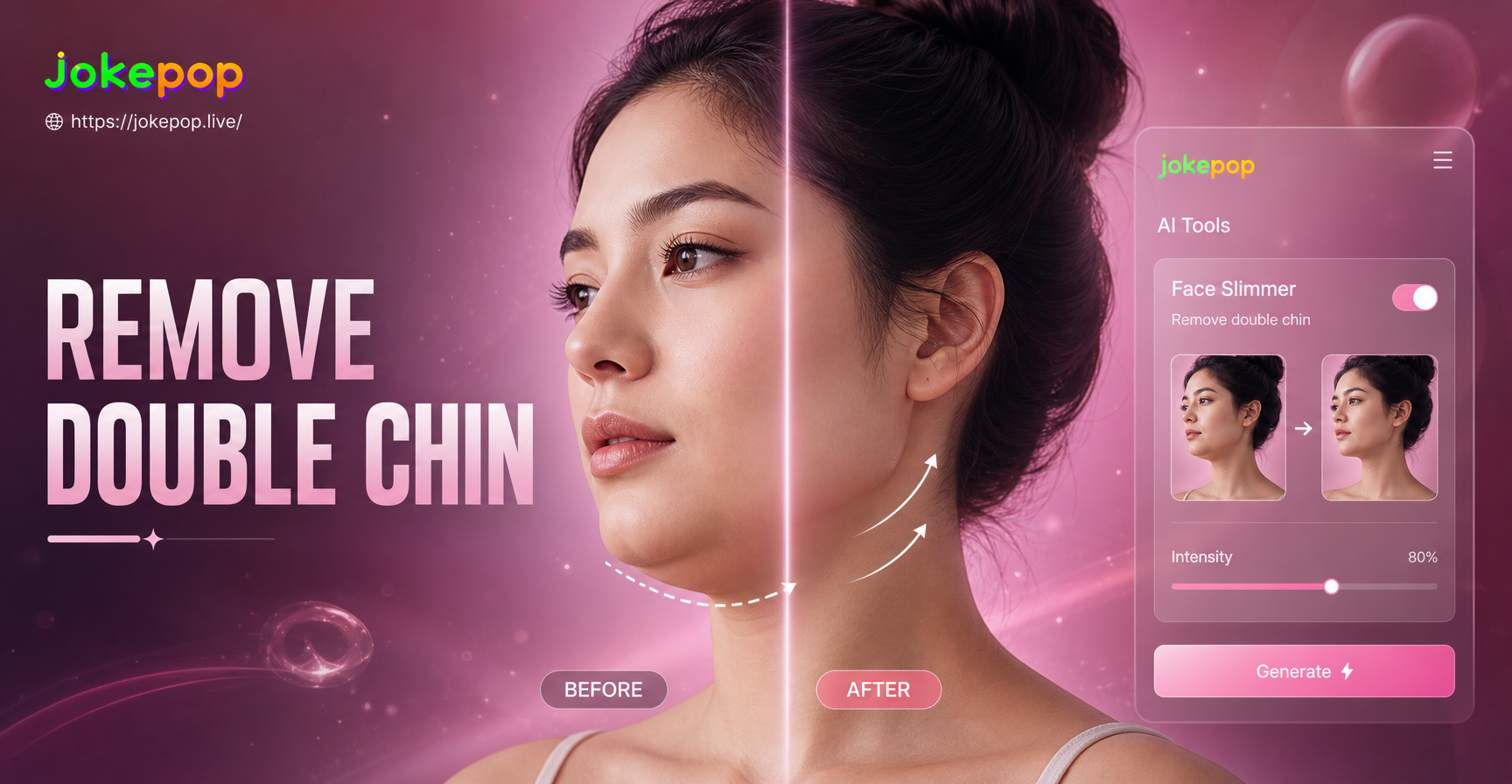
When you look at a photo and see a double chin that was not obvious in the mirror, you are not alone. The camera flattens three dimensional features and often makes the area under your jaw look fuller. Fortunately, you can learn how to remove a double chin in a photo using a few effective methods. Some fixes happen before you press the shutter, while others use simple photo editing tools on your phone. This guide covers the most reliable ways to get a sharper jawline in every picture.
Why Double Chins Appear in Photos
A double chin in a photo is usually caused by the relationship between your head position, the camera angle, and the lens. When you tilt your chin down even slightly, the skin under your jaw folds and creates a shadow. Wide angle lenses, common on phone cameras, can also exaggerate this effect because they distort objects close to the lens. Harsh overhead lighting casts a shadow directly beneath your chin, making the area look heavier. Even people with a defined jawline can appear to have a double chin in the wrong conditions. Understanding these causes helps you correct them before and after taking the shot.
Posing Tricks to Prevent a Double Chin
Before editing anything, adjust your posture. These in camera tricks can dramatically reduce the appearance of a double chin without any software.
Stretch Your Neck Forward
Push your forehead an inch closer to the camera and move your chin forward and slightly down. This move, often called the turtle, feels odd at first but it tightens the skin under your jaw and creates a cleaner line. Practice in a mirror to see the difference immediately.
Press Your Tongue to the Roof of Your Mouth
Keep your lips relaxed and press your tongue flat against the roof of your mouth, just behind your teeth. This simple action engages the muscles under your chin and lifts the soft tissue. Combine it with the neck stretch for the best result.
Turn Your Head Slightly to the Side
A three quarter angle hides the area directly under the chin. Instead of facing the camera straight on, turn your head about 30 degrees to either side. This changes the light and shadow pattern and makes the jawline look more sculpted.
Raise the Camera Above Eye Level
If you are taking a selfie or someone is photographing you, position the camera slightly above your eye line. Shooting from a higher angle forces you to look up, which stretches the neck and reduces the shadow under your chin. Avoid shots taken from below because they make any double chin much more visible.
Lighting Techniques That Slim the Jawline
Light has a powerful effect on facial contours. Soft, diffused light from the front or slightly above minimizes shadows and evens out the skin under your chin. Avoid a single overhead light, which creates a dark pocket directly beneath your jaw. If you are indoors, face a window and hold a white sheet or reflector below your chin to bounce light upward. Side lighting can also help by carving out the jawline and adding definition. For outdoor photos, avoid harsh midday sun and choose open shade instead.
How to Edit Out a Double Chin on Your Phone
Even with the best posing and lighting, some photos need a little retouching. Most modern phone photo editors include a liquify, reshape, or warp tool that lets you push pixels around. You do not need professional software to get a natural result.
Step by Step Using a Basic Photo Editor
- Open your photo in any editing app that has a liquify or reshape tool. Examples include built in phone galleries or dedicated editors.
- Select the liquify tool and set the brush size to roughly the width of the double chin area.
- Use a gentle push or pinch motion to move the skin under the chin upward and inward. Work in small increments and zoom in to see the changes.
- Switch to a smaller brush and refine the jawline edge. Push the outline slightly inward to create a smoother transition from jaw to neck.
- Use the heal or clone tool to soften any remaining shadow or crease lines.
- Compare the edited photo with the original using the app's preview button. Reduce the strength if the edit looks unnatural.
- Save a copy and export at the highest resolution available.
Use Clone and Heal Tools to Soften Shadows
If the liquify tool alone leaves a visible shadow, use the clone or healing brush. Sample an area of clean skin from the neck or jaw and carefully paint over the dark shadow beneath the chin. Lower the opacity to about 40 percent so the texture remains realistic. The goal is to reduce contrast, not to erase every detail.
Using AI Photo Apps for a Natural Chin Reduction
AI photo editors are changing the way people retouch portraits. Some apps can automatically detect facial features and apply subtle slimming effects. Others let you type a text prompt and let the AI modify the image. For a creative approach, you can try jokepop, an AI design app available on Google Play. jokepop offers image to image editing, which means you upload a portrait and ask the AI to refine the jawline or reduce the double chin. The tool is not a medical retouching suite, but it can produce artistic and natural looking adjustments when you use the right prompt. Download jokepop from Google Play, upload your photo, choose a natural style filter, and try a prompt like 'slim jawline, reduce double chin, smooth skin under chin, keep natural face shape'. Experiment with different style filters until the result looks balanced. Remember that AI edits can change other facial features, so always compare the output with the original.
Step by Step: Remove a Double Chin with Your Phone
Here is a complete workflow that combines shooting and editing.
- Take or choose a photo where your face is well lit and the camera is slightly above eye level.
- Open the photo in a basic editor and use the liquify tool to gently lift the jawline.
- Soften the shadow using the heal or clone tool with low opacity.
- Apply a subtle skin smoothing filter if needed, but avoid making the skin look plastic.
- If you prefer an AI approach, open jokepop or a similar app and generate a refined version using an image to image prompt.
- Save both the original and the edited version so you can compare them later.
Common Mistakes That Make Double Chins Worse
- Pressing your chin down into your neck when you smile, which folds the skin.
- Shooting from a low angle, which makes the under chin area look larger.
- Using a too strong liquify tool, which creates wavy lines and an unnatural shape.
- Relying on harsh overhead lighting, which deepens the shadow under the chin.
- Over smoothing the skin, which removes natural texture and makes the edit obvious.
How to Keep Your Edited Photos Looking Natural
The key to a believable edit is subtlety. Make small adjustments and stop before the photo looks manipulated. Keep the natural curve of the neck and jaw, and do not erase every shadow. A faint shadow under the chin is normal and helps the face look three dimensional. Use the undo button often and compare with the original at every step. If you are using an AI tool, choose a low intensity setting if available, or ask for 'natural and realistic' in your prompt.
Frequently Asked Questions About Double Chin Removal
Can I remove a double chin from a photo without any editing app?
Yes. You can often reduce the appearance of a double chin by adjusting the camera angle, stretching your neck, and using soft front lighting. These changes do not modify the photo itself but they improve the result before you take the picture.
What is the easiest free way to edit out a double chin?
Most free phone editors include a liquify or reshape tool. Open your photo, choose the liquify brush, and gently push the jawline upward and inward. Then use the healing brush to lighten the shadow. It takes less than a minute once you know where the tools are.
Do AI apps really remove double chins?
Some AI photo tools can automatically slim the face or adjust the jawline. Results vary depending on the app and the photo. For the most control, use a manual liquify tool after an AI edit, or combine both approaches.
Will editing make my photo look fake?
Only if you overdo it. Small, gradual changes look natural. Keep the jawline curve realistic, preserve skin texture, and compare with the original frequently. A successful edit is one that nobody notices.
Removing a double chin from a photo is easier than you think. Start with better posture and lighting, then use simple editing tools to refine the result. If you want to experiment with AI powered editing, download jokepop from Google Play and try its image to image feature. With a little practice, you can make every photo show your best angle.