Why Photo Emojis Are So Hard to Remove
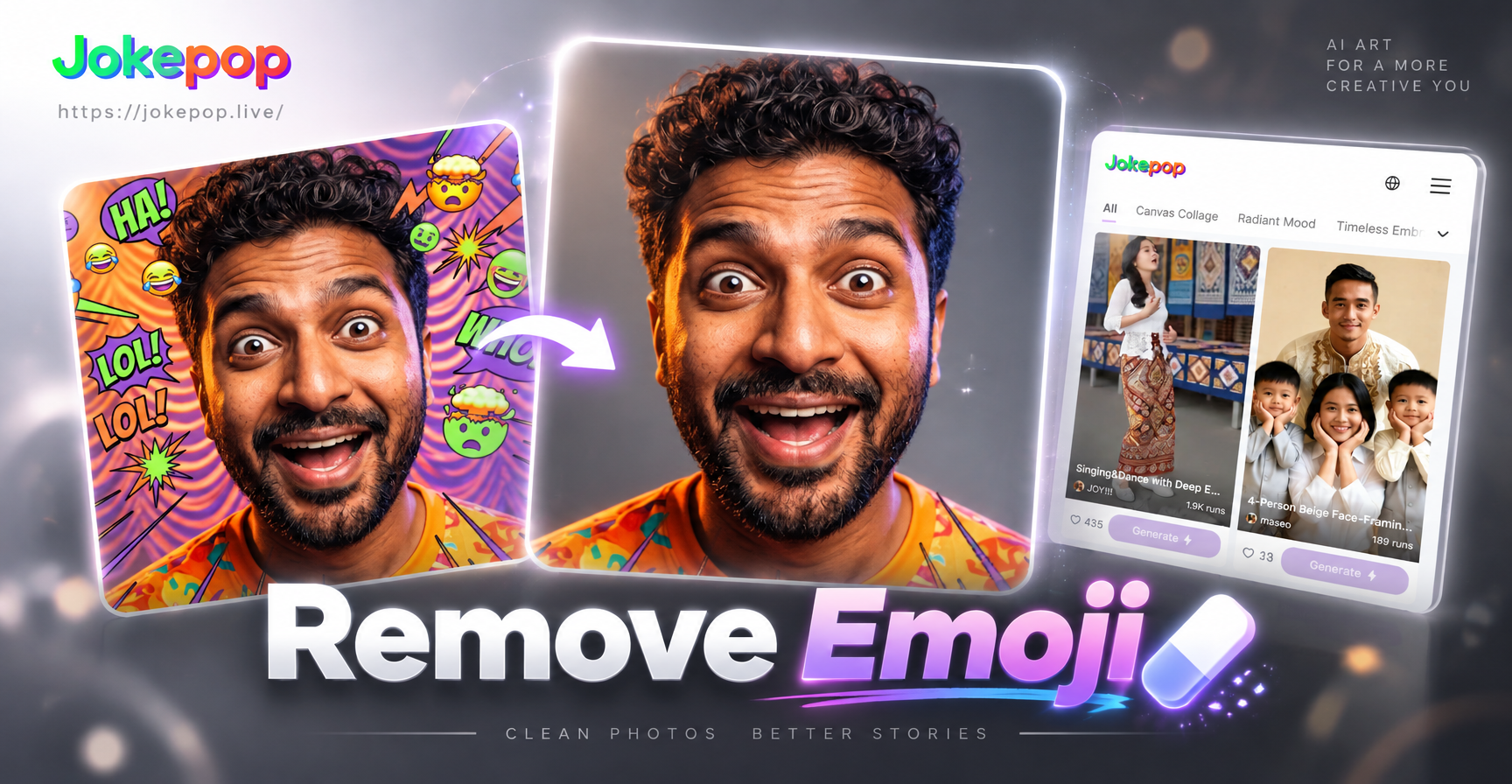
Emoji stickers often cover important details like faces, text, or edges of objects. They sit on top of the image as opaque layers, so simple cropping or color adjustments cannot bring back what is underneath. To remove a photo emoji properly, you need a tool that can look at the surrounding pixels and intelligently rebuild the hidden area.
Traditional editing requires clone stamps, healing brushes, and a lot of patience. AI image editing changes this. Instead of copying nearby pixels manually, you describe what should disappear, and the software generates a new, natural version of that spot.
What You Need Before You Start
You need a clear copy of the photo, preferably in high resolution. The emoji should be fully visible so the AI can understand its shape and position. You also need an app that supports image to image generation with text prompts. jokepop is a mobile AI design tool available on Google Play that lets you upload a photo and describe the edit you want.
Make sure you have enough light and a stable internet connection. The generation process usually takes a few seconds to a minute depending on the complexity of the photo.
How to Remove Photo Emoji: The AI Way
The fastest method is to use an AI image editor like jokepop. You upload the picture, describe the emoji you want gone, and let the model rebuild the background. Follow these steps.
Step 1: Download the App and Open Your Photo
Search for jokepop on Google Play and install it. Open the app and start a new image to image project. Upload the photo that has the emoji you want to remove.
Step 2: Choose the Image to Image Mode
In the app, select the image to image option. This mode keeps the main subject and overall composition while applying the changes you describe. It is different from text to image because it uses your original photo as the reference.
Step 3: Write a Clear Removal Prompt
In the prompt box, describe exactly what you want to remove and how the area should look after. Do not just write "remove emoji." Instead, include details about the location, the object behind it, and the desired result. For example, "Remove the yellow smiley emoji from the bottom right corner and restore the stone floor texture underneath. Keep the original lighting and colors."
The more specific your prompt, the better the AI understands the task. Mention the emoji color, the surrounding area, and whether you want the original texture restored.
Step 4: Generate and Review
Tap generate and wait a few seconds. The app will create a new image with the emoji removed. Check the result carefully. If the area looks blurry or the texture does not match, adjust the prompt and generate again. You can try different phrasing until the output looks clean.
Useful Prompts for Removing Photo Emoji
Here are some prompts you can copy and adapt. Replace the details in brackets with your own.
Prompt for a Single Emoji on Clothing
Remove the red heart emoji from the left shoulder of the white shirt. Restore the fabric folds and shading naturally. Keep the person's pose and expression unchanged.
Prompt for Emoji Stickers on a Face
Erase all emoji stickers from the face and neck. Rebuild the natural skin texture, pores, and shadows without changing the person's facial features. Keep the original skin tone and lighting.
Prompt for Emoji on a Wall or Background
Remove the laughing emoji from the wall behind the subject. Restore the brick texture, paint color, and shadow patterns accurately. Do not change the subject or the foreground.
Prompt for Emoji Covering Text
Delete the sunglasses emoji that covers the text on the sign. Recreate the missing letters in the same font and color. Match the existing text style and make the area look untouched.
Prompt for Multiple Emojis on Different Areas
Remove all emoji stickers from the photo, including the heart on the table, the star on the window, and the face emoji on the shirt. Rebuild each covered area with realistic textures and consistent lighting. Do not alter the rest of the image.
Prompt for Emoji on a Glass Window
Remove the crying emoji from the glass window pane. Restore the transparent reflection, background blur, and natural streaks of light. Keep the person inside the room sharp and unchanged.
Prompt for Emoji on a Wooden Surface
Erase the party emoji from the wooden table. Rebuild the wood grain pattern, knots, and varnish highlights. Match the existing color tone and keep the surrounding objects exactly the same.
Prompt for Emoji on a Car or Vehicle
Delete the skull emoji from the car door. Restore the metallic paint, reflections, and scratches. Keep the car's shape and the background unchanged.
Real World Examples to Guide Your Prompt
Seeing concrete examples helps you write better instructions. Here are three common scenarios and the prompts that work well.
Example 1: Emoji on a T Shirt
Original photo: a person wearing a plain blue T shirt with a large orange emoji on the chest.
Suggested prompt: Remove the orange emoji from the blue T shirt. Restore the smooth cotton texture and natural shadows. Keep the person's arms and torso exactly the same.
Example 2: Emoji on a Face in a Group Photo
Original photo: a group selfie where one person's face is covered by a unicorn emoji.
Suggested prompt: Erase the unicorn emoji from the face of the person in the middle. Rebuild their eyes, nose, mouth, and skin texture naturally. Keep the same expression and make the face match the others.
Example 3: Emoji on a Glass Window
Original photo: a portrait taken in front of a cafe window with a coffee emoji sticker over the glass.
Suggested prompt: Remove the coffee emoji from the glass window. Restore the transparent reflection and the blurred street behind it. Do not change the person standing in front of the window.
How to Remove Emoji from Different Surfaces
Different surfaces require different prompt details. The AI needs to know what material it is rebuilding.
Skin and Faces
When an emoji covers skin, mention skin texture, pores, shadows, and skin tone. Add a phrase like "keep the person's identity unchanged" to avoid changing the subject.
Clothing and Fabric
For fabric, name the material, such as cotton, denim, or silk. Mention folds, wrinkles, and lighting. This helps the AI create a natural replacement instead of a flat patch.
Walls and Textured Backgrounds
For walls, include the texture type: brick, plaster, painted drywall, or wallpaper. Shadows and existing stains matter. Describe the wall color and any pattern.
Glass and Reflections
Glass is tricky because it contains reflections and transparency. Tell the AI to restore the reflection, the background behind the glass, and any smudges or light streaks.
Wood, Metal, and Other Hard Surfaces
For wood, mention grain and varnish. For metal, mention reflections and paint finish. The more realistic details you provide, the better the AI recreates the surface.
How to Improve Weak Results
Sometimes the first output is not perfect. The AI might leave a faint outline or create a slightly different texture. Here is how to fix common problems.
Faint outlines: Add the phrase "completely erase the emoji and blend the edges seamlessly with the surrounding area" to your prompt.
Texture mismatch: Describe the background material in detail, such as "cotton fabric," "wooden table," or "painted drywall."
Changed subject features: If the face or body looks different, add "keep the person's face, posture, and expression exactly the same" to the prompt.
Blurry spot: Increase the image resolution before uploading if possible. Also try adding "sharp details and natural noise" to the prompt.
Alternative Methods to Remove Photo Emoji
If you prefer manual control, you can use a photo editor with a healing brush or clone stamp tool. Zoom in on the emoji, sample a clean area nearby, and paint over the sticker. This works well for simple backgrounds but takes time and skill.
Another option is to crop the emoji out, but this only works if the emoji is near the edge and you can afford to lose part of the image. AI removal is usually better because it keeps the original composition intact.
Common Mistakes to Avoid
Do not use prompts that are too vague. Saying "remove emoji" without location details often confuses the AI and leads to poor results. Always name the emoji color or type and the area it occupies.
Do not expect perfect results from a heavily compressed image. Low quality photos give the AI less information to rebuild hidden areas. Use the highest resolution version you have.
Do not rush through the review step. Check the generated image at full size, especially around the area where the emoji was removed.
Why jokepop Works Well for This Task
jokepop combines image to image generation with a huge library of style filters. While it is often used for creative transformations, its image to image mode can also handle practical edits like removing emoji overlays. You upload a photo, describe the cleanup, and the AI generates a clean version. Since the app runs on mobile, you can fix pictures anywhere without booting up a desktop editor.
The app is free to download from Google Play. You can experiment with different prompts until you get a natural result. There is no need for advanced prompt engineering because the app is designed for simple descriptions.
Frequently Asked Questions
Can I remove photo emoji for free?
Yes, jokepop offers free access to its core image generation features. You can download the app and try removing emoji from your photos without paying for a subscription. Some advanced features or high resolution exports may require in app purchases, but the basic removal workflow is available for free.
Will the AI keep the original person looking the same?
In most cases, yes. If you include a phrase like "keep the person's face and expression unchanged" in your prompt, the AI will preserve the subject. If the face still changes, generate again with more emphasis on identity preservation.
What if the emoji covers a large area?
For large emojis, break the removal into smaller steps if possible. Remove one part at a time, save the intermediate image, and then remove the next part. This gives the AI less guessing to do and often produces cleaner textures.
Does this work on screenshots or social media posts?
Yes, you can remove emojis from screenshots as long as the image quality is good enough. Keep in mind that heavily compressed screenshots may produce softer results. Try to use the original image whenever possible.
Final Thoughts
Removing a photo emoji no longer requires expensive software or professional editing skills. With a mobile AI tool like jokepop, you can erase stickers, restore hidden details, and save a clean version of your picture in just a few steps. Start with a clear prompt, review the output carefully, and adjust until the result looks natural. Download the app from Google Play today and bring your best photos back to life.